

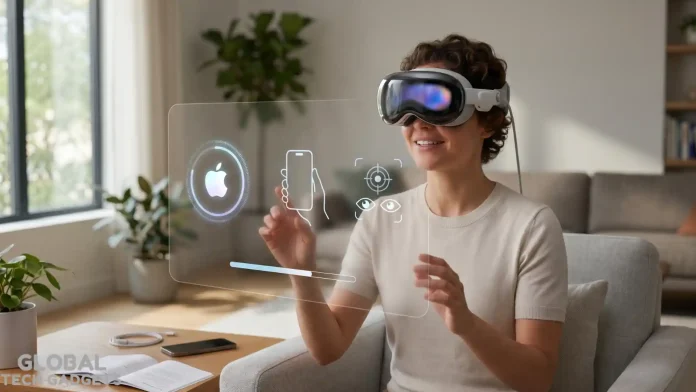
You just unboxed your Apple Vision Pro M5—and wow, that sleek new design with the M5 chip inside already feels like the future. Whether this is your first step into spatial computing or you’re upgrading from the original model, you’re in the right place. This guide walks you through every single setup step, gets you productive in your first 30 minutes, and hands you the exact visionOS 26 tips, tricks, and pro-level moves that turn this headset from impressive to indispensable. No fluff—just clear, real-world advice that saves you hours of frustration.
By the end, you’ll know how to nail the perfect fit with the new Dual Knit Band, master eye and hand tracking, unlock spatial widgets that stick exactly where you want them, and avoid the rookie mistakes that send most beginners back to the box. Let’s dive in.
Unboxing and Getting the Perfect Fit (5 Minutes)
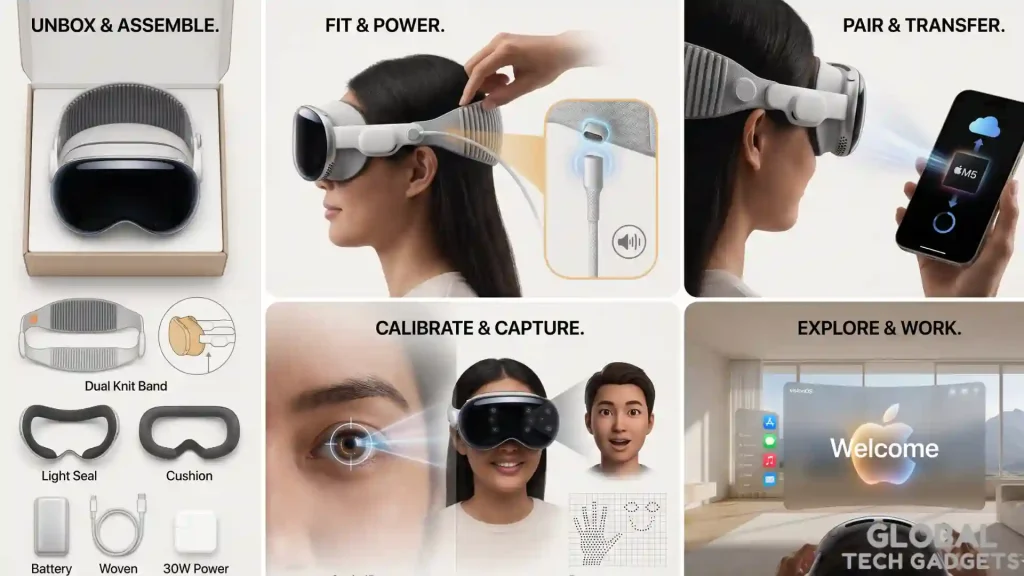
Pull everything out of the travel-ready packaging. Inside you’ll find the Vision Pro M5 headset, the upgraded Dual Knit Band (already attached or in the box), Light Seal, battery pack, 40W USB-C charger, polishing cloth, and cover.
Pro tip right away: The Dual Knit Band is the biggest comfort upgrade since the original Vision Pro. Its dual-rib 3D-knit structure with tungsten counterweights balances the weight beautifully. Use the Apple Store app on your iPhone to scan for your exact size (S, M, or L) before you even start.
- Connect the battery pack to the headset’s magnetic connector. You’ll hear a soft chime when it’s powered on.
- Slide the Dual Knit Band over the back of your head. The upper strap sits high for balance; the lower one cradles your neck.
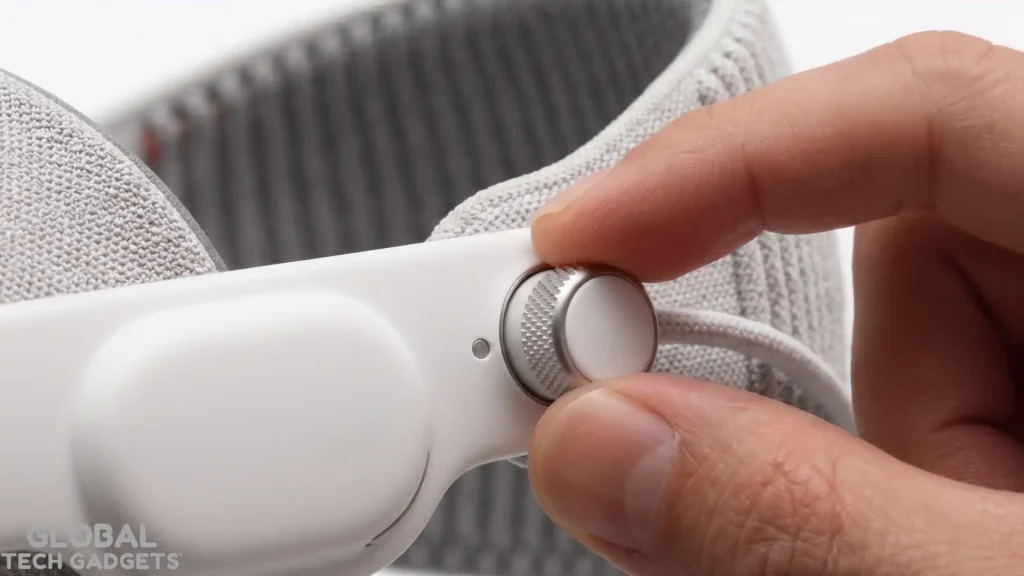
- Use the intuitive Fit Dial (it does double duty for both tension and fine adjustments) to snug everything without pressure points. You want a secure seal that feels like it’s floating, not clamped.
- If you wear glasses, grab ZEISS Optical Inserts (readers $99 or prescription $149). They click right in and make a massive difference—don’t skip this if you need vision correction.
Once it’s on, the world gently fades into your spatial home view. You’re ready for the real magic.
visionOS 26 First 30 Minutes: Complete Beginner Setup
visionOS 26 feels instantly familiar yet revolutionary. The M5 chip makes everything snappier—apps launch faster, widgets populate instantly, and AI features run smoother than ever.
Here’s the exact sequence Apple designed for first-time users:
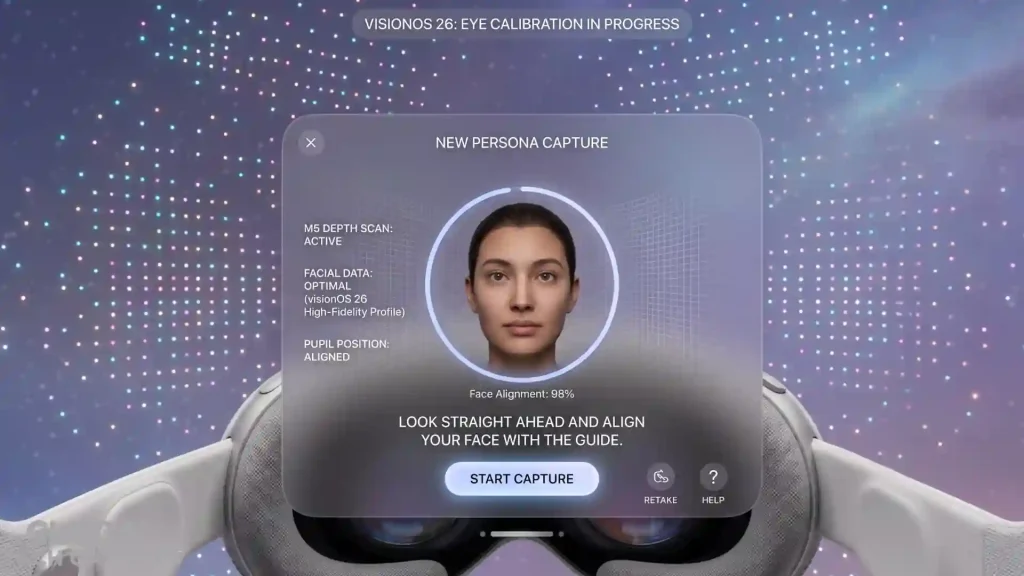
- Eye & Hand Calibration — Follow the glowing dots with your eyes. It takes about 20 seconds and calibrates the ultra-precise eye tracking. Then hold your hands up and follow the simple gestures tutorial.
- Sign in with Apple ID — Use your iPhone or iPad for quick pairing if they’re nearby. This instantly pulls in your apps, iCloud photos, and Apple Intelligence settings.
- Set Up Your Persona — visionOS 26’s all-new Personas are dramatically better. The updated capture process now handles glasses, different hairstyles, and complexions with stunning realism. Smile, turn your head side to side, and preview it before saving. This is huge for FaceTime and shared spatial experiences.
- Enable Apple Intelligence — Turn on the new features for smarter writing tools, Image Playground enhancements, and on-device AI that works even faster thanks to the M5’s 16-core Neural Engine.
- Connect to Wi-Fi and Bluetooth — Pair your AirPods, keyboard, or PlayStation VR2 Sense controllers right here for instant game support.
- Home View Customization — Arrange your favorite apps. Folders are finally here in visionOS 26—drag similar apps together for a cleaner workspace.
In under 30 minutes, you’re fully set up and exploring spatial apps, immersive environments, and your first spatial photo.
M5 Chip Innovations: Why the 2026 Model Feels Next-Level
The jump from the original M2 to the M5 isn’t just marketing—it’s transformative for everyday use:
- 10-core CPU + 10-core GPU with hardware-accelerated ray tracing and mesh shading delivers buttery-smooth graphics in games and 3D apps.
- 153 GB/s memory bandwidth (up from 100 GB/s) means faster multitasking and instant widget loading.
- Up to 120Hz refresh rate for passthrough video and Mac Virtual Display—motion feels natural, and text is razor-sharp.
- 10% more pixels rendered on the same stunning micro-OLED displays for crisper everything.
- Battery life boost to 2.5 hours general use or 3 hours of video playback.
The M5 also powers visionOS 26’s AI features up to 2x faster in third-party apps. You’ll notice it immediately when generating spatial scenes or running complex spatial workflows.
Top 15 visionOS 26 Tips, Tricks & Power Moves
These are the ones I wish I’d known Day 1:
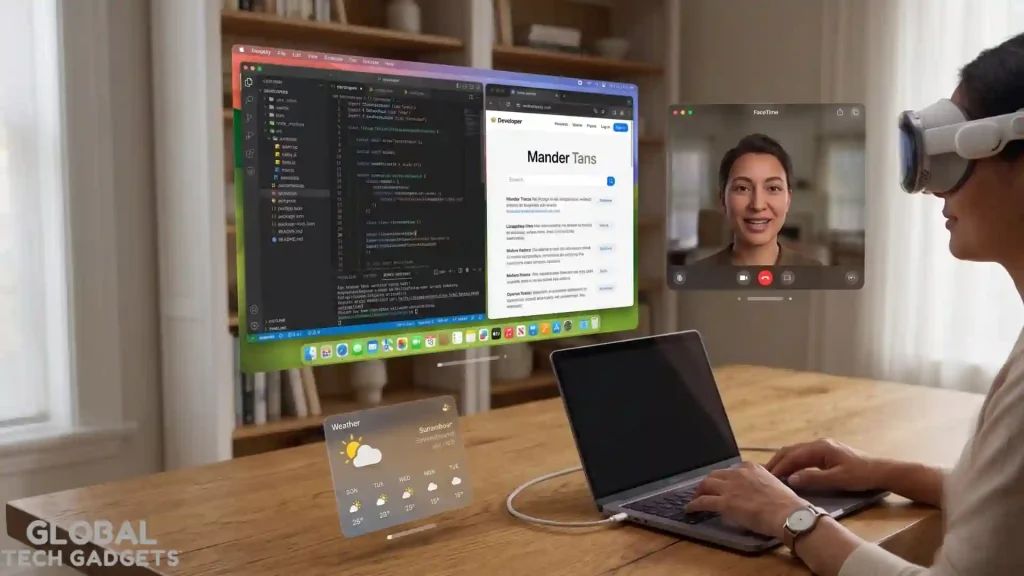
- Pin spatial widgets anywhere — Clock, Weather, Music, Photos, and Calendar now snap to walls, tables, or float in space. They stay exactly where you left them—even after you take the headset off.
- Look to Scroll in Safari — Just glance down and the page scrolls hands-free. Pair it with spatial 3D models embedded in web pages for mind-blowing browsing.
- Unlock your iPhone with a glance — No more reaching for your phone when wearing the headset.
- Create spatial scenes from regular photos — In the Photos app, select any image and turn it into a 3D immersive memory with generative AI depth.
- Share experiences in the same room — Use your improved Persona to watch movies or play games together with friends who also have Vision Pro.
- Mac Virtual Display at 120Hz — Connect your MacBook and get a massive, private ultra-sharp workspace that feels like three external monitors.
- Jupiter Environment — Head to Environments and speed up or slow down time in this breathtaking interactive space.
- Folders in Home View — Finally organize your apps like you do on iPhone.
- Live Recognition & Accessibility boosts — Zoom, improved typing, and object recognition make the headset usable for longer sessions.
- Quick battery swap — Keep a second pack charged (highly recommend the official or third-party options) for all-day use.
- Gesture mastery — Pinch to select, flick to scroll, and use both hands for precise 3D object manipulation.
- Control Center shortcuts — Double-tap the Digital Crown for instant access to volume, brightness, and Focus modes.
- Hand tracking at 90Hz — Games feel incredibly responsive—no lag.
- Wide FOV immersive video — Play 180°/360° footage from GoPro, Insta360, or Canon action cams directly in Safari or dedicated apps.
- Automatic Persona updates — visionOS 26 learns your expressions over time for even more natural video calls.
Advanced visionOS 26 Features You’ll Use Daily
Beyond the basics, visionOS 26 shines with:
- Spatial Widgets persistence — They survive restarts and feel truly part of your room.
- Inline spatial scenes in Safari — Articles come alive as you scroll.
- Expanded Apple Intelligence — More languages, better Image Playground control, and on-device processing that respects privacy.
- Shared spatial sessions — Watch NBA games, movies, or collaborate in real time with nearby Vision Pro users.
- Developer APIs for persistence — Apps remember your exact window and widget placements.
These features turn the M5 Vision Pro into a true spatial computer, not just a fancy headset.
Troubleshooting: Common Mistakes to Avoid (and How to Fix Them Fast)
Even with the M5’s power, beginners hit the same walls. Here’s the real-world fixes:
- Motion sickness or eye strain — Start with short 15-minute sessions. Use the Fit Dial for perfect balance. Enable reduced motion in Settings > Accessibility. Take breaks and look at real-world objects often.
- Blurry vision or poor tracking — Recalibrate eyes and hands in Settings > Vision Pro. Clean the lenses with the included cloth. ZEISS inserts are non-negotiable for glasses wearers.
- Battery dies too fast — Plug in the 40W charger for extended sessions. Lower brightness slightly and close background apps via the Control Center.
- Widgets won’t stick or apps won’t launch — Restart the headset (hold Digital Crown + top button). Ensure you’re on the latest visionOS 26 update.
- Persona looks off — Recapture in good lighting. The new process handles glasses and hair far better than before.
- Mac Virtual Display lag — Use a strong Wi-Fi 6E/7 network and close other apps on your Mac.
Most issues disappear with the M5’s efficiency and a quick recalibration.
Original Vision Pro (M2) vs. M5 2026: Quick Comparison
| Feature | Original M2 (2024) | M5 2026 Model | Real-World Win |
| Chip | 8-core CPU, 10-core GPU | 10-core CPU, 10-core GPU + ray tracing | 2x faster AI, snappier apps |
| Memory Bandwidth | 100 GB/s | 153 GB/s | Faster multitasking |
| Refresh Rate | Up to 100Hz | Up to 120Hz | Smoother passthrough & Mac display |
| Pixel Rendering | Standard | +10% more pixels | Sharper text & detail |
| Battery Life | ~2 hours | 2.5 hrs general / 3 hrs video | Noticeably longer sessions |
| Head Band | Standard | Dual Knit Band + Fit Dial | Much more comfortable |
| Personas | Original | All-new expressive & realistic | Better FaceTime & sharing |
| Price (256GB) | $3,499 | $3,499 | Same price, huge upgrades |
The M5 model is the one to buy in 2026—especially if comfort and speed matter to you.
How do I use Quick Start to set up my Apple Vision Pro M5?
Bring your iPhone or iPad running the latest OS directly next to your Vision Pro M5 headset. A prompt will automatically appear on your mobile device to wirelessly transfer your Apple Account and Wi-Fi settings. Follow the intuitive on-screen instructions to instantly bypass manual data entry in visionOS 26.
How do I fix eye and hand tracking calibration issues on visionOS 26?
Ensure you are in a well-lit room so the advanced M5 chip sensors can clearly map your hands and eyes. Clean the internal displays and external camera glass exclusively with the included Apple polishing cloth to remove smudges. Quadruple-click the top button on the headset to force a manual override and instantly trigger the recalibration process.
Can I wear my prescription glasses while using the Apple Vision Pro M5?
No, the spatial computer is structurally designed to be worn without traditional framed prescription glasses. You must purchase and magnetically attach custom ZEISS Optical Inserts for seamless vision correction. Once attached, visionOS 26 will seamlessly detect the new inserts and prompt you to pair their specific prescription profile.
How do I adjust the Vision Pro M5 headband for maximum comfort?
Position the standard Solo Knit Band or the dual-strap design securely and evenly across the back of your head. Turn the integrated Fit Dial clockwise or counterclockwise until the physical pressure is perfectly balanced across your face. The Light Seal should rest gently on your cheeks and forehead without leaving deep marks or feeling uncomfortably tight.
Can I set up the Apple Vision Pro M5 completely without an iPhone?
Yes, you can finalize the entire visionOS 26 setup process manually without owning or connecting another Apple device. Simply double-click the Digital Crown the moment the initial Quick Start menu appears in your spatial view. You will then utilize the virtual floating keyboard and eye-tracking to manually type your Wi-Fi password and Apple credentials.
How long does the initial Apple Vision Pro M5 setup process take?
The comprehensively guided setup tutorial typically requires between 10 to 15 minutes for complete beginners to finish. This exact timeframe accounts for physically fitting the headset, scanning your hands, calibrating your eyes, and capturing your spatial Persona. Utilizing the Quick Start proximity feature with an existing iOS device will significantly accelerate this overall timeline.


